Hotel Lobby AI / Field notes
How to Make a Hotel Lobby AI Video
The Migos two-photo format
The same Hotel Lobby workflow underlies this Migos AI video generator. Start with two authorized photos, review a static preview, then confirm the separate video quote.
Prepare and crop two photos
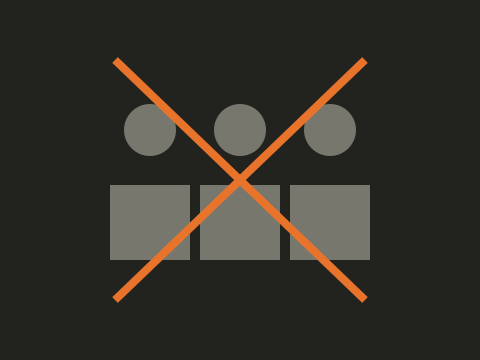
Use one unobstructed person or pet per image. In the generator, choose Left and Right, open Crop photo to adjust framing with the zoom and position controls, then apply. Swap reverses the roles. Prepared JPEG drafts stay in this browser for up to 24 hours; clear them on shared devices. Submitting the preview uploads both photos. Account sign-in claims the server creation without discarding that preview.
Faces blending or changing identity
Check the two faces separately in the static preview. Avoid crowds, tiny faces and strongly different lighting. Replace the unclear source and request a new preview subject to quota. A successful still does not prove that motion will preserve identity; inspect the whole final clip. No live fidelity or interaction guarantee has been verified.
One person, two roles
Use “Same photo on both sides” or upload two authorized views. Check each role in the preview. Reusing a picture is supported by the controls; quality is a separate acceptance question.
Waiting, failed or paid but missing?
Queued, generating and saving are server states, not percentage estimates. Keep the creation link and sign in to claim it. Confirmed technical failure returns only still-valid source credits once. A completed result you dislike is not automatically refundable. Payment confirmation comes from verified orders; check My orders before paying again.
Sound and publishing
Outputs contain no soundtrack. Add only music you may use for the intended platform, account and purpose. Downloading your own result does not require another purchase. Sharing is voluntary and does not publish a private task URL.
Preview and video are separate
The free entry is a quota-limited static preview. The next video quote comes from the server’s saved template version. Reusing photos or retrying a paid job needs a fresh confirmation. Compare the catalog and proposed subscriptions.
Choose two photos in the generatorStandard videos: 5 or 10 seconds. HD and 15-second videos are not available yet.
Use the guide to prepare suitable photos and understand the steps before spending anything. A free preview is a still-image stage, not a promise of a free finished video. Third-party controls and prices can change; documentation was checked on September 30, 2026, but we did not purchase a plan or submit a generation. No method below requires downloading the original COLORS performance.
What you need
Start with two photos that you own or have permission to use. Each should show one intended subject clearly. A photo with a small face in a crowd is harder to interpret than one person framed from the waist up. Keep an original copy on your device, especially if you need to try a different crop later.
For the two-photo interface, select one file for Left and one for Right. JPEG, PNG and WebP are supported; the browser also attempts HEIC conversion. The source must be no larger than 15 MB and its shorter dimension must be at least 400 pixels. Those checks describe upload compatibility, not an assurance of image quality.
A DIY motion-transfer workflow also needs a reference video you created or are entitled to process. Film a simple, original exchange of gestures with two consenting subjects and a fixed camera. Leave space between them so their silhouettes remain distinct. Use a plain backdrop and avoid a microphone or hand covering either face. A recognizable stage design is not permission to reuse someone else’s recording.
You will need a destination app only if you want to post or add audio. Keep that separate from generation: save and inspect the silent video first, then decide whether the available music is permitted for your account and intended use. You do not need to supply a social-media password to Hotel Lobby AI.
Method 1: HotelLobbyAI.me (2 photos, no prompt)
The controls are on the homepage and on an active template detail page. Check the availability message first. A paused generator is an actual service restriction, not an invitation to pay elsewhere to bypass it. In the local review environment, a conspicuous mock label identifies test results.
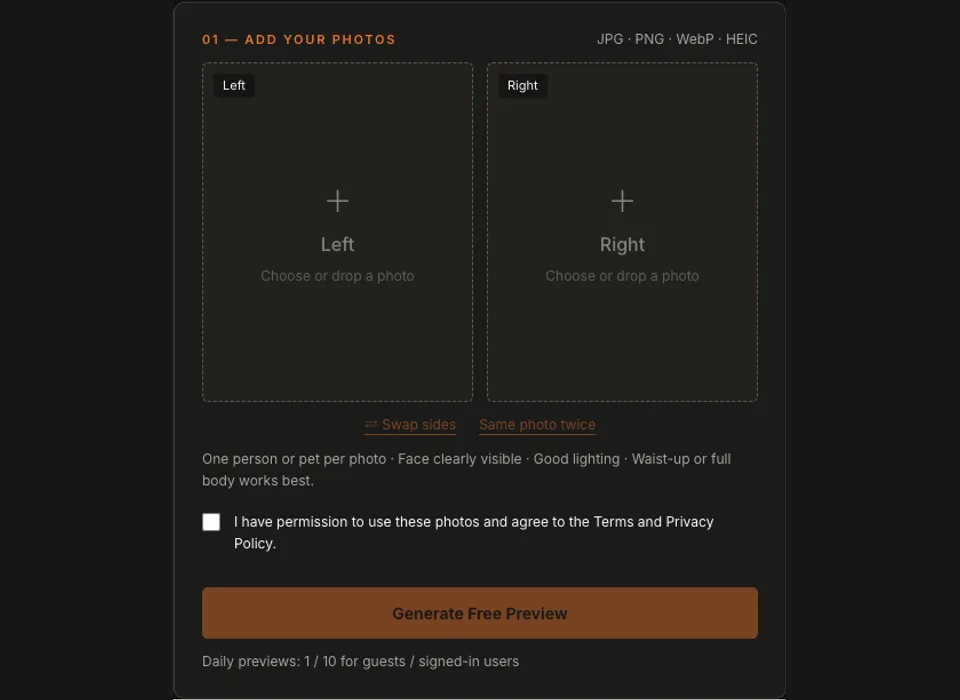
Our own interface, with empty upload slots. This is a control walkthrough, not a generated-result example.
- Choose the left photo. Click Left or drag a file onto the slot. On a phone, the standard file picker lets you select an available image. Wait for the prepared thumbnail before choosing the next photo.
- Choose the right photo. Select a second file, or use Same photo twice. Check that each thumbnail shows the intended subject. Swap sides exchanges the files before submission.
- Confirm permission. Read the consent statement and check it only if you have the necessary permission. Complete verification when it is available. Missing verification configuration cannot be solved by clicking repeatedly.
- Request the preview. Generate Free Preview submits both prepared photos in one request. Upload progress describes bytes being sent, not how much of the AI generation is finished. Once the server returns a creation ID, the browser opens that creation.
- Inspect the still image. Check both identities, their positions, clothing and visible anatomy. If the composition is wrong, try other photos before considering motion. A technically successful preview can still be a poor creative result.
- Sign in and claim. Animate This opens sign-in when needed. Google and email-code options appear according to configuration. After login, the current anonymous creation is claimed by the account; you should return to the same preview.
- Review quality and credits. The selector shows server-configured options and costs. HD is not yet validated. If your balance is insufficient, choose a credit pack or optional subscription before generating.
- Save a completed result. Once a real job is ready, review the video, then download or share it. Save your copy before its 7-day retention window ends.
The browser prepares photos as JPEG, corrects supported orientation metadata, limits the longest edge to 2048 pixels and removes EXIF. It does not upload the original GPS metadata alongside the prepared file. If a HEIC file cannot be read, export it as JPEG using a trusted local photo app and try that file. Renaming a filename from .heic to .jpg is not a conversion.
If you lose the page during generation, reopen the same creation or use My creations after sign-in. The page reads the saved task status; refreshing is not a new animation request. Do not clear your anonymous browser data before claiming a creation you want to keep. A different browser does not inherit that anonymous ownership.
On TikTok, Instagram or another in-app browser, Google login may need a full browser. Use the provided copy-link control to open Safari or Chrome, or use email code when configured. Do not send a code to support or paste it into a third-party page. This project has not yet completed real OAuth or email-delivery acceptance, so an unavailable label should be taken literally.
Method 2: Higgsfield Genjutsu Motion Transfer
Higgsfield’s official Genjutsu page describes Motion Transfer as preserving a source video’s motion and camera while rebuilding the scene from references. Its separate Object Swap mode targets selected elements. For a DIY setup, open Genjutsu, choose Motion Transfer, provide your authorized video and reference images, describe the intended change, and inspect the quoted credit cost before generating.
The current official page says reference videos can run from 3 to 30 seconds and that the generator shows the credit cost for each run. We do not publish a fixed dollar-per-second web price: account plans and API billing are different contexts. Check the current generator and Higgsfield pricing before committing. The older September 17 launch-date claim was not verified and is not used here.
For your own comparison, keep the reference clip and photo choices consistent between attempts. Change one creative input at a time, such as framing or lighting, so you can understand what improved. Keep a private record of the quoted cost and the result. Do not assume that a familiar model name means this site has tested that exact account, endpoint or version.
This is a separate service with its own terms and data handling. Read those before uploading a person’s image. A provider’s commercial-use statement does not establish that you have permission to depict a particular person or reuse a piece of music. Those permissions come from the underlying material and intended use, not from pressing Generate.
Method 3: Kling motion control (DIY)
The official Kling VIDEO 2.6 Motion Control guide describes a motion-reference video, a character-reference image and a prompt for context. Its steps cover uploading the video, uploading the character image, choosing an orientation mode, describing the scene and generating. It distinguishes matching character orientation to the video from matching it to the image.
Check the current Kling interface before starting. The guide supports that workflow, but it does not establish a stable price for your logged-in account or prove that a two-character duet will preserve both identities. We did not submit a Kling job or verify a current checkout quote. Do not treat unrelated sites with “Kling” in their names as the official service.
For this project’s scene, first compare the framing of your reference image and your motion video. If the action requires a full body but your photo only shows a face, the missing parts must be inferred. Keep faces separate from the microphone and leave room for movement. This is a planning checklist rather than a promise that any one provider can reproduce the desired scene from arbitrary inputs.
A provider’s orientation setting is also different from the Left and Right slots in our generator. Do not assume the first uploaded reference always becomes the left performer in a separate tool. Read that tool’s labeling and inspect a small authorized test only after reviewing its current cost. You remain responsible for any external spend.
The Hotel Lobby AI prompt
The built-in generator uses its template configuration, so you do not paste a prompt there. For a separate tool that accepts text and two subject references, this is a starting description. Adapt the image numbering to that tool’s actual input scheme; a prompt cannot add a second reference slot that the model does not support.
Two performers in a warm orange seamless studio booth, one vintage microphone hanging from the ceiling between them, locked-off camera, vertical 9:16. The person from image 1 stands on the left, the person from image 2 on the right. They take turns performing to the mic with confident hip-hop hand gestures and head nods. Keep faces, hair, skin tone and outfits identical to the reference photos. Natural studio lighting.Optional negative prompt, only where the chosen tool provides that field:
extra people, extra limbs, distorted hands, face morphing, text, captions, logos, watermark, camera shake, blurThese words express an intention. They are not a measured guarantee of identity, anatomy or watermark removal, and they do not grant rights to an image. Keep the scene description focused. Adding a long list of conflicting camera moves would work against the fixed-camera setup.
Best photo settings
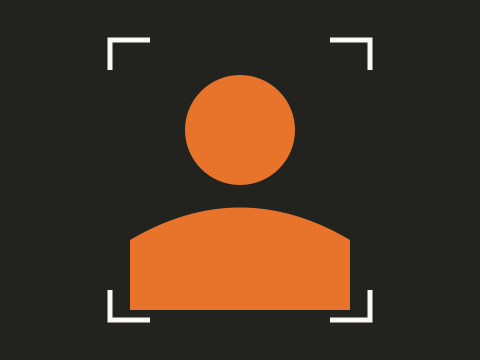
Use soft, even light and a face large enough to inspect before uploading. Try to match the two photos’ camera height and amount of visible body. A waist-up photograph of one subject and a tiny full-body silhouette of another ask for very different reconstruction. If possible, retake the weaker photo rather than enlarging a low-detail crop.
For pets, show the animal in a natural, recognizable pose with its eyes and muzzle unobstructed. A costume that hides most of the body can make the intended anatomy less clear. Pet support is still a quality goal awaiting acceptance, so inspect carefully for humanized paws or body shapes before sharing.
For the same person twice, start with the same photo to understand the two-slot layout. Then try different authorized poses if you want more contrast. Do not use a child’s photo without guardian permission, and never use this workflow for sexualized, deceptive or otherwise prohibited depictions.
Why faces drift (and how to fix it)
A generated frame is a new image, not a perfect copy of every source pixel. Occluded features, very small faces, unusual angles and overlapping movement leave more room for ambiguity. A prompt that requests exact identity does not eliminate those limits. Start by improving the evidence in the photos and simplifying the composition.
Check the first still preview for the same problem you later see in motion. If the preview already has the wrong face or wrong side, animation is unlikely to be a sensible next purchase. If the still is acceptable but the video drifts during a gesture, review the movement and visibility around that moment. Do not pay for a higher resolution simply because the label sounds more accurate.
A technical failure or timeout follows the failed-job credit rules. A completed but disappointing render is a separate quality question; do not assume it automatically triggers a cash refund. Keep those distinctions clear when deciding whether to try again.
How to add the official Hotel Lobby sound on TikTok and Instagram
Save the silent video first. On TikTok, start a post with the saved clip, use the app’s sound selection, search for the song and check which recording is available to your account. Trim the selected excerpt to fit your clip, preview the timing, and check volume before posting. TikTok’s music guidance distinguishes commercial sound access by account and region.
In Instagram, use the current Reel editor’s music controls and check the available licensed library for your account. We could not verify a current Instagram help page during this review, so exact button labels and song availability are not asserted. If the track is unavailable, use a permitted alternative; do not download the recording from another video to bypass a restriction.
Adding a track inside one app does not automatically authorize exporting that audio to another service. For business or promotional posts, check the relevant commercial music rules. The site supplies no audio download and cannot promise that a specific recording is available in every country.
Is there a free, no-watermark way?
Separate a tool’s free preview from its finished-video offer. Our free stage is a watermarked still image, subject to the configured daily quota. Video generation is a separate credit operation, with prices shown before checkout. A local mock result is a test of the interface, not a free substitute for a real model run.
Third-party trials, credits and watermark policies can change with the plan or promotion. Check the offer shown in your own account before uploading or rendering. We do not list an unverified free-credit number or promise an unlimited workaround. Use a service only if its price, rights and data handling fit your intended use.
FAQ
Should I write a prompt for the two-photo generator?
No. That interface uses a template prompt controlled by the service. The example above is for a separate DIY tool. Use your time to choose clear photos and inspect the preview rather than searching for a hidden prompt field.
Why is Generate Free Preview disabled?
Check both prepared photos, the permission checkbox, verification and the availability message. The service can pause generation or reach a quota. Missing external configuration is also a real restriction. A disabled button does not mean payment will unlock the preview.
What should I do after a failed upload?
Read the specific message. Export an unreadable HEIC as JPEG, choose a larger source for a too-small image, or use a supported format. For a service error, retry only after the state is clear; keep the creation URL if one was already returned.
Can I close the page while a video is processing?
A submitted task runs on the server. Return to the same creation or your account to inspect its status. Closing a page is not cancellation, and opening two tabs does not buy two attempts. Save completed assets before their retention period ends.
Does a retry reuse the first video charge?
A retry is a separate attempt. The original failed job’s eligible credit return and the new job’s charge are separate ledger entries. Review the displayed refund state and available balance before confirming another attempt.
Which route should I use if I only want to learn the format?
Read the trend explanation, then browse active templates. You do not need to upload a photo or provide an email to read the guide. The pricing page explains packs and current availability.
Last updated: